
Compare Legacy and Secure Mesh Site v2 Configurations Using Migration Utility
Objective
This document provides the procedure to use Migration Utility to compare Legacy and Secure Mesh Site v2 settings.
Introduction
A new workflow for deploying Customer Edge (CE) sites has been introduced and is now Generally Available (GA). This workflow provides a simplified experience to deploy Customer Edges (CEs) anywhere. Therefore, F5 recommends that you use this new workflow for all CE deployments. We also recommend migrating existing CE sites to new Secure Mesh Site v2.
To ensure the services running on Legacy CE sites are migrated fully to the new Secure Mesh Site v2, we have created a Docker-Based Migration Helper Utility that helps query the objects configured on the older CE site and provides them as Inventory table and XLSX file. Using this Inventory table and XLSX file, customers can ensure that all services are fully moved to the new Secure Mesh Site v2.
This utility helps you with two phases of CE site migration:
-
Pre-Migration: Get Legacy Site Inventory: Get a snapshot of all the Load Balancers and services running on the Legacy site.
-
Post-Migration: Compare and Audit Sites: During post migration step, use this tool to compare Secure Mesh Site v2 and Legacy site. This confirms that you successfully migrated all services (load balancers, origin pools and so on) to Secure Mesh Site v2.
Note: This migration utility does not automatically migrate your Legacy CE sites to new Secure Mesh Site v2. Refer to the Migrate Legacy CE Site to Secure Mesh Site v2 document for migration steps.
Docker-Based Migration Helper Utility
Utility Setup
Follow the below steps to set up the docker:
Clone Utility from the Repo
git clone using https://github.com/f5devcentral/f5xc-site-query
Enter: cd f5xc-site-query
Installation
Install Docker using following instructions:
-
Docker Engine: Docker Engine
-
Docker Desktop: Docker Desktop
On macOS or Linux based systems, run below commands to build and run docker container:
- Build image
docker build . -t site-query:latest
- Run Container
docker run -it --rm site-query
Credentials - Create an API Token for Your Tenant
-
Sign in to the F5 Distributed Cloud Console with Administrative privileges and navigate to Administration.
-
Under Personal Management select Credentials. Then click Add Credentials to create an API Token credential type with appropriate expiry date.
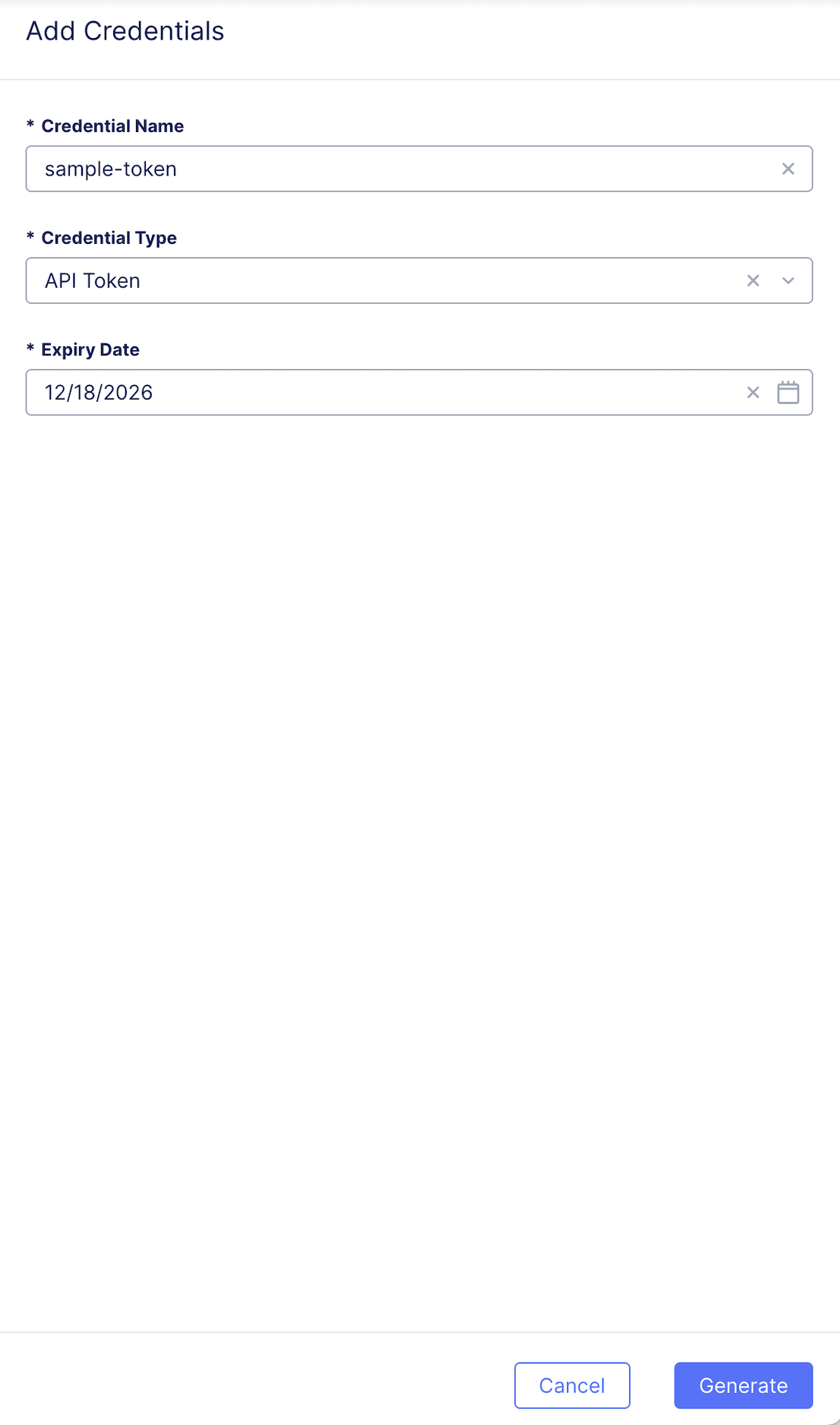
Figure: Add Credentials
- Save the generated API Token for the next step.
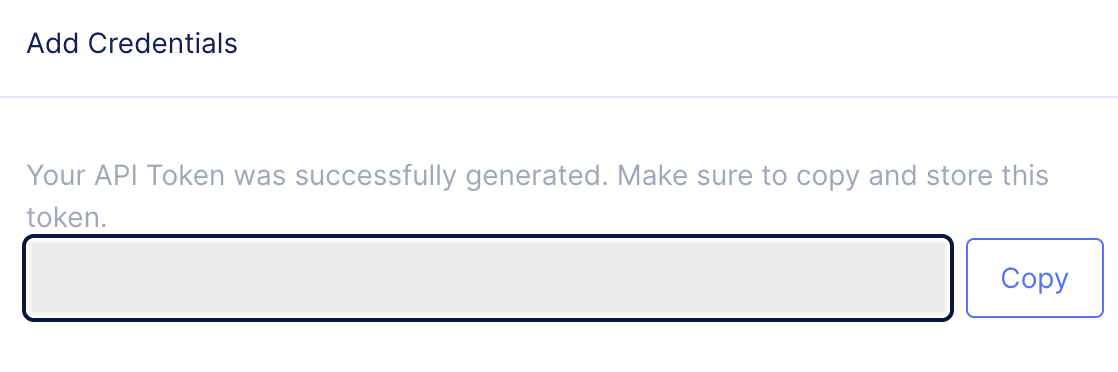
Figure: Copy API TOken
Define Environment Variables
- Set environment variables with the API URL and the generated API Token.
Note: Replace the
<tenant>below with your tenant's name. Alternatively, you can set command line options instead when running the script.
export f5xc_api_url="https://<tenant>.console.ves.volterra.io/api"
export f5xc_api_token="............................"
Now that you have set up the utility to run properly in your environment, let us walk through the migration steps:
Migration Steps
Step 1: Pre-Migration - Get Legacy Site Inventory
Step 1.1: Getting Legacy site inventory
Before you start the site migration, the first step is to collect a snapshot of all objects that reference both sites. For example, an object can be a load balancer.
The below sample images illustrate a load balancer configured on the Legacy site:
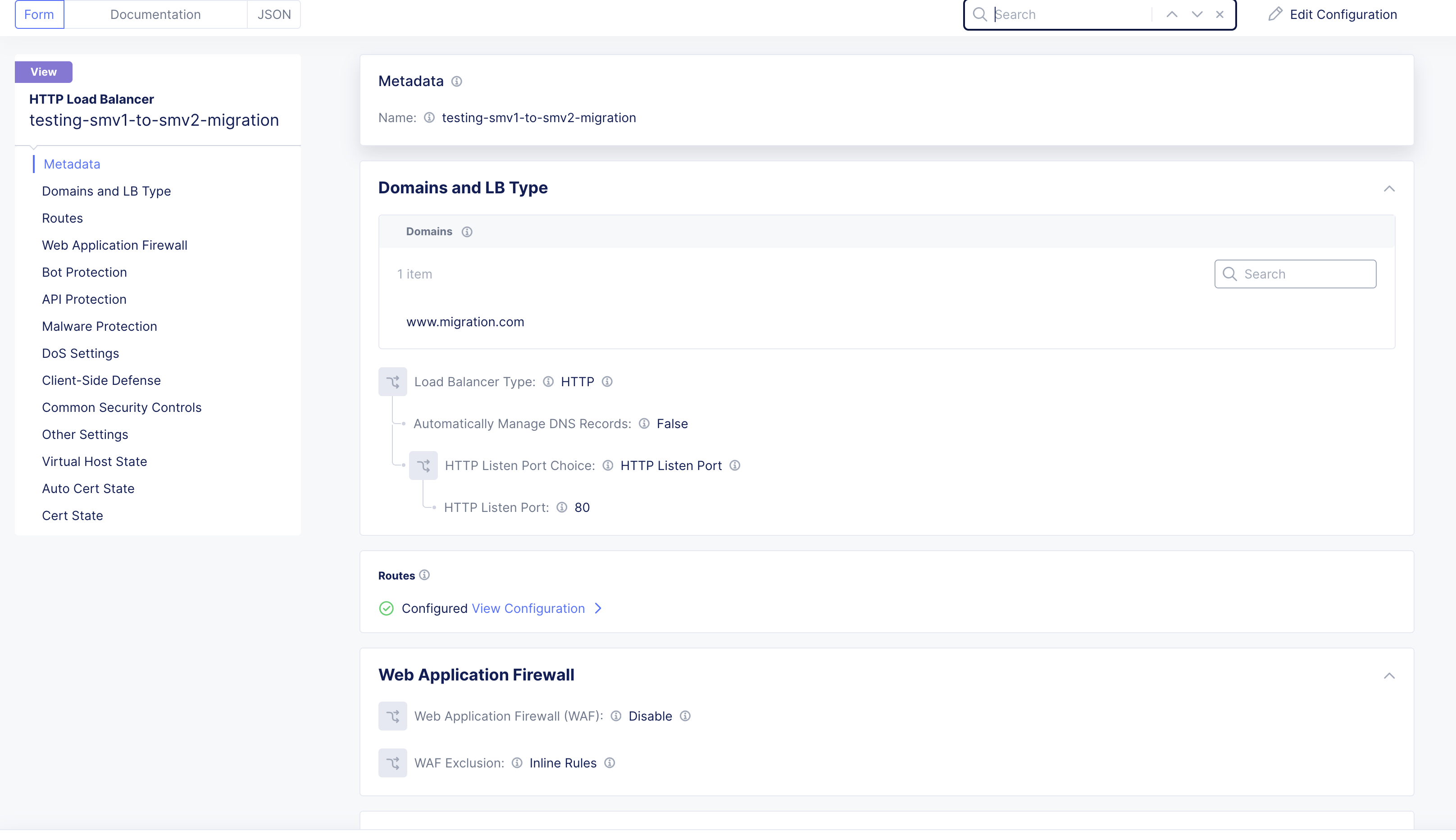
Figure: Load Balancer on Legacy Site
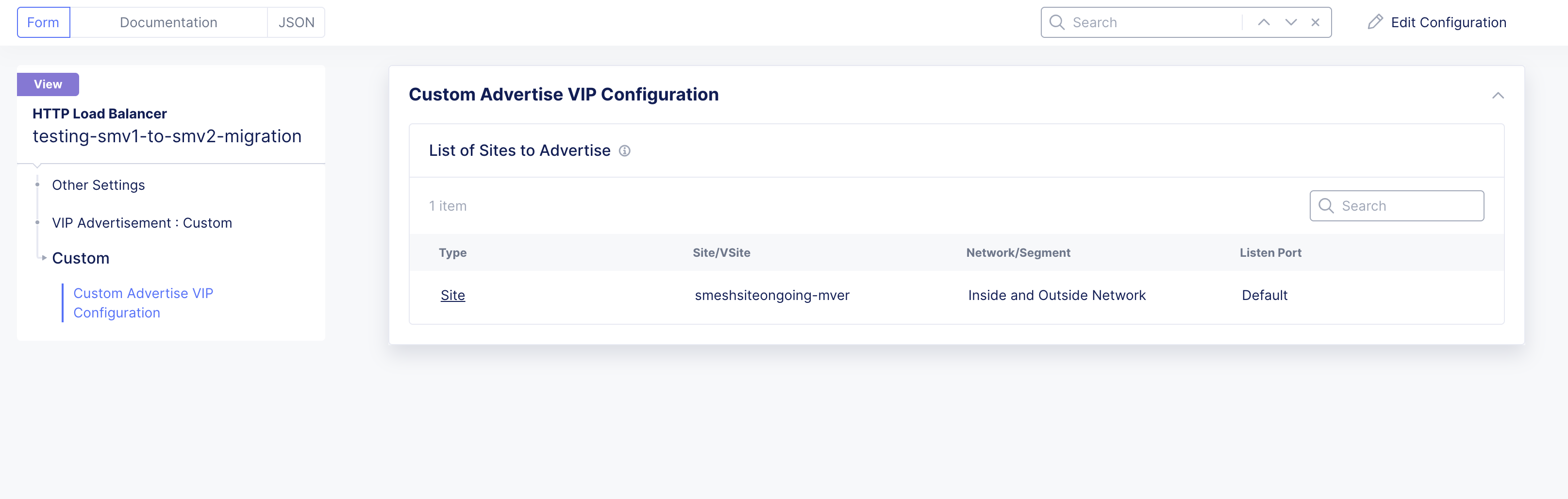
Figure: Load Balancer Configuration Details
Export Inventory to XLSX
Run the following docker command to generate Inventory XLSX file for Legacy site.
docker run -it -v "$(pwd)":/data -e f5xc_api_url=$f5xc_api_url -e f5xc_api_token=$f5xc_api_token site-query -f /data/smeshsiteongoing-mver.json -q -s smeshsiteongoing-mver --log-stdout --build-inventory --inventory-file-xlsx /data/smeshsiteongoing-mver.xlsx
The inventory XLSX file for the Legacy site is stored in "/data/smeshsiteongoing-mver.xlsx".
The generated XLSX file includes the following sections (see below images):
Summary of Infrastructure and Services:
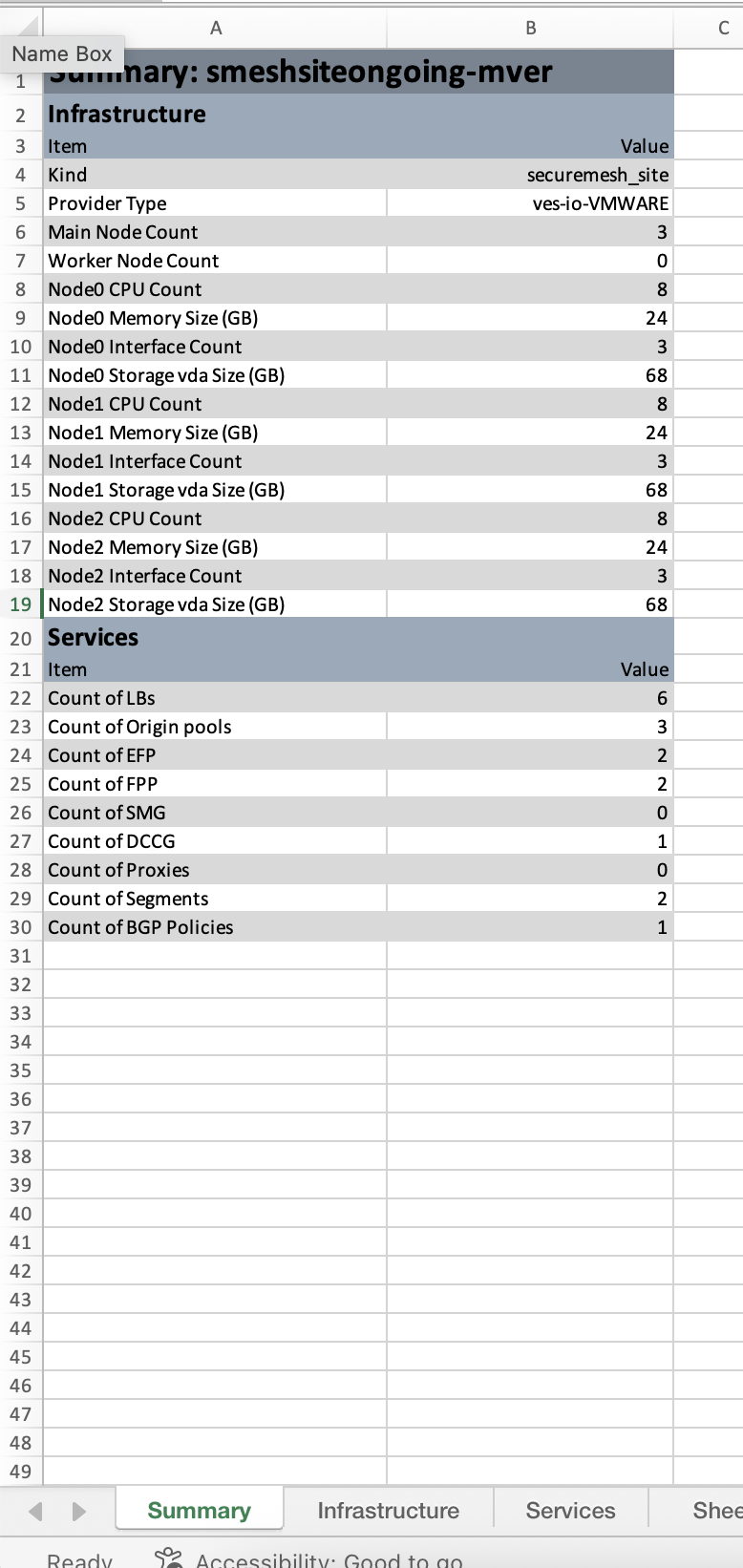
Figure: Summary of Infrastructure and Services
Infrastructure Details:
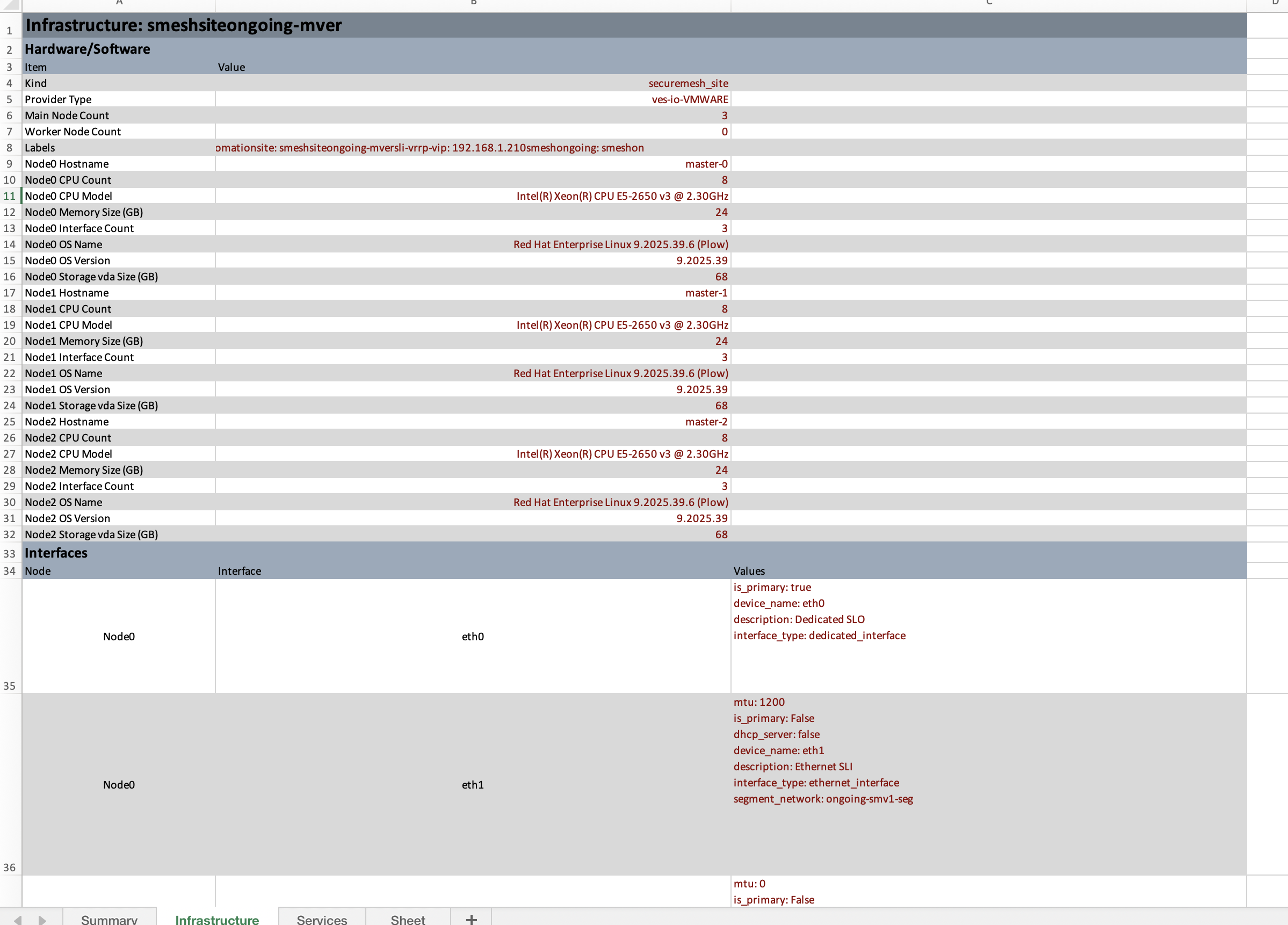
Figure: Details of the Infrastructure
Service Details:
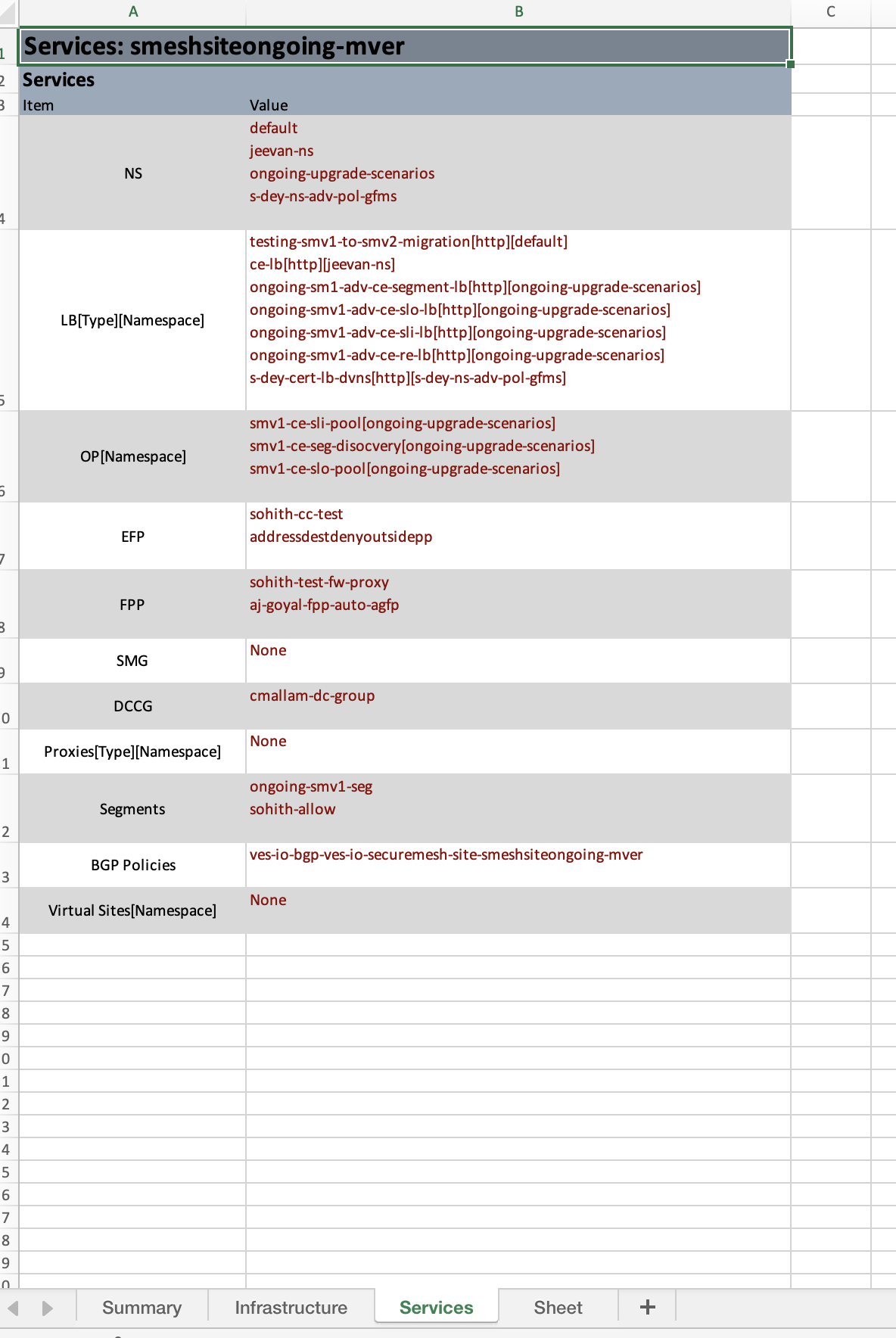
Figure: Details of the Services
Step 2: Post-Migration - Compare and Audit Sites After Migration
Step 2.1: Compare Legacy and Secure Mesh Site v2
Generate Comparison Table
Run the below command to compare and display the differences in tabular format:
docker run -it --rm -v "$(pwd)":/data -e f5xc_api_url=$f5xc_api_url -e f5xc_api_token=$f5xc_api_token site-query -c --old-site smeshsiteongoing-mver --old-site-file /data/smeshsiteongoing-mver.json --new-site ongoing-vmware-staging-multi-sm2-ce01 --new-site-file /data/ongoing-vmware-staging-multi-sm2-ce01.json --diff-table --log-stdout
Note: After creating the Secure Mesh Site v2, compare it with the Legacy site. This comparison is iterative and you will repeat it multiple times as you migrate different objects like load balancers, and other services one by one from the Legacy site to Secure Mesh Site v2. Once all services have been migrated, perform a final post-migration inventory to confirm everything has been successfully migrated.
See below sample image for more details:
Comparison Table After Migration:
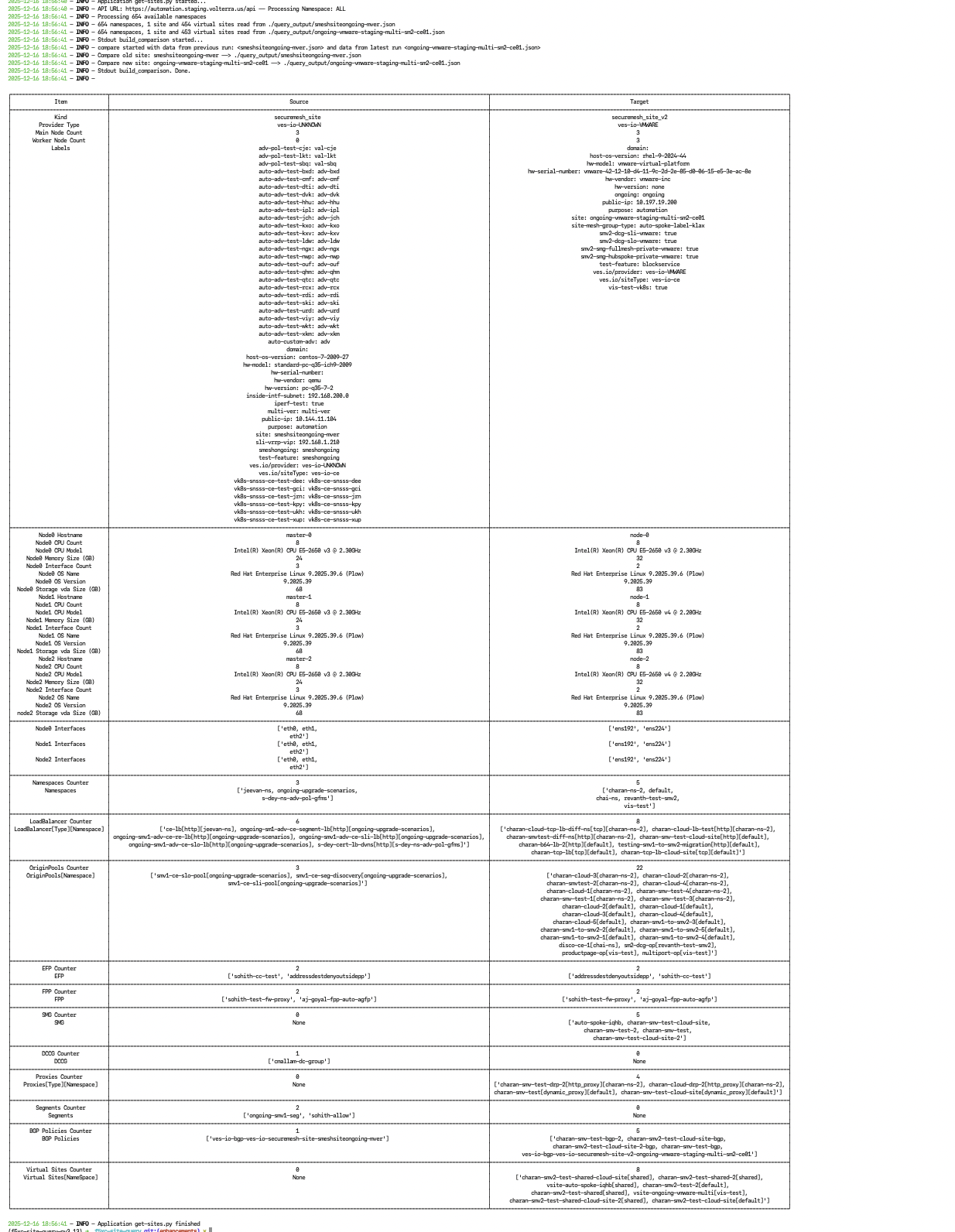
Figure: Comparison Table After Migration
Generate the Diff XLSX File
Run the below command to generate a XLSX file:
docker run -it --rm -v "$(pwd)":/data -e f5xc_api_url=$f5xc_api_url -e f5xc_api_token=$f5xc_api_token site-query -c --old-site smeshsiteongoing-mver --old-site-file /data/smeshsiteongoing-mver.json --new-site ongoing-vmware-staging-multi-sm2-ce01 --new-site-file /data/ongoing-vmware-staging-multi-sm2-ce01.json --diff-file-xlsx /data/diff.xlsx --log-stdout
Diff XLSX file is stored in "/data/diff.xlsx".
Summary of Infrastructure and Services:
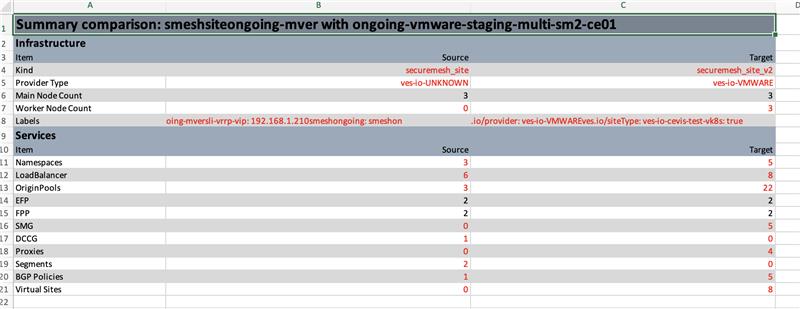
Figure: Summary of Infrastructure and Services
Infrastructure Details:
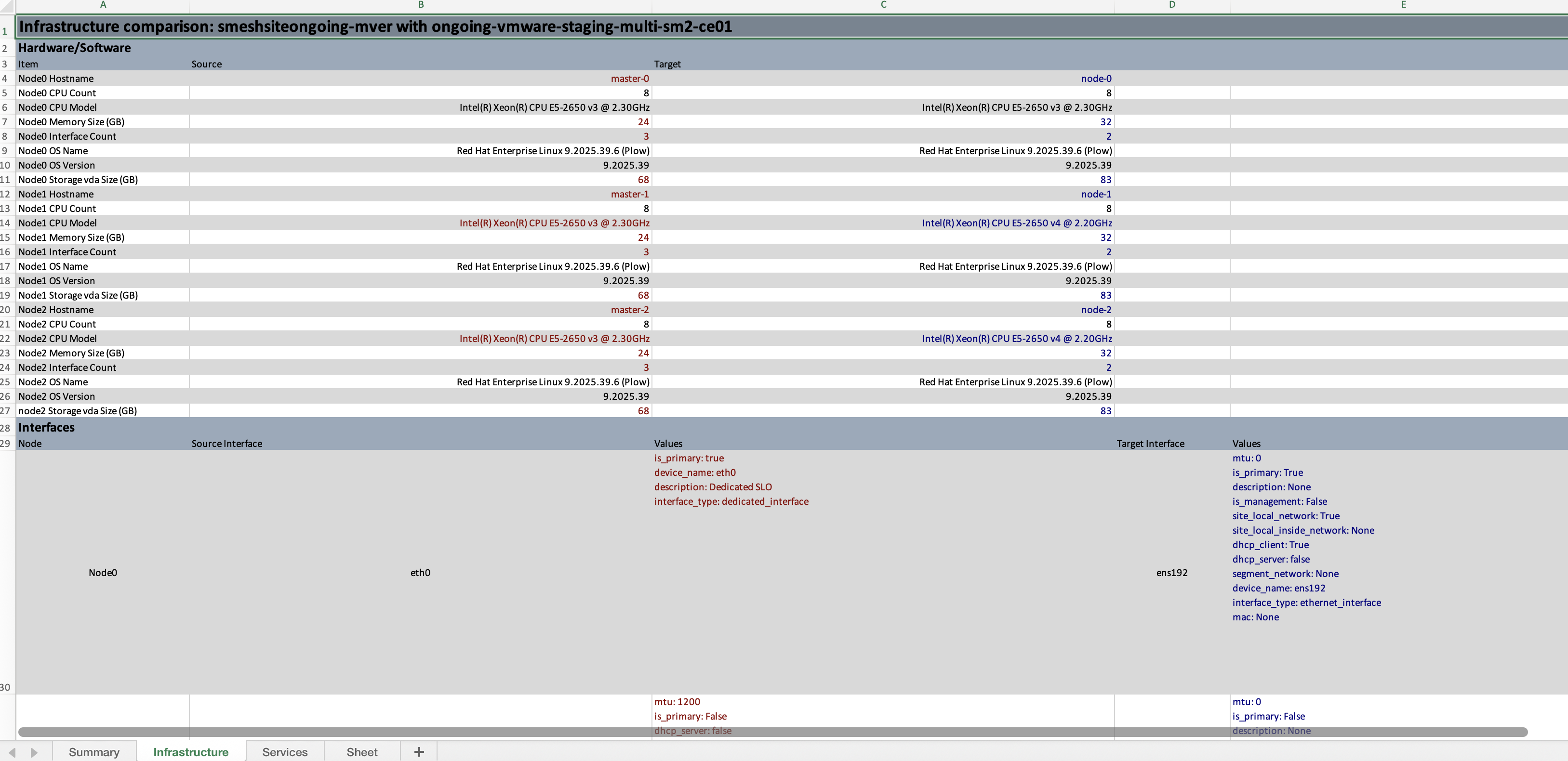
Figure: Details of the Infrastructure
Service Details:
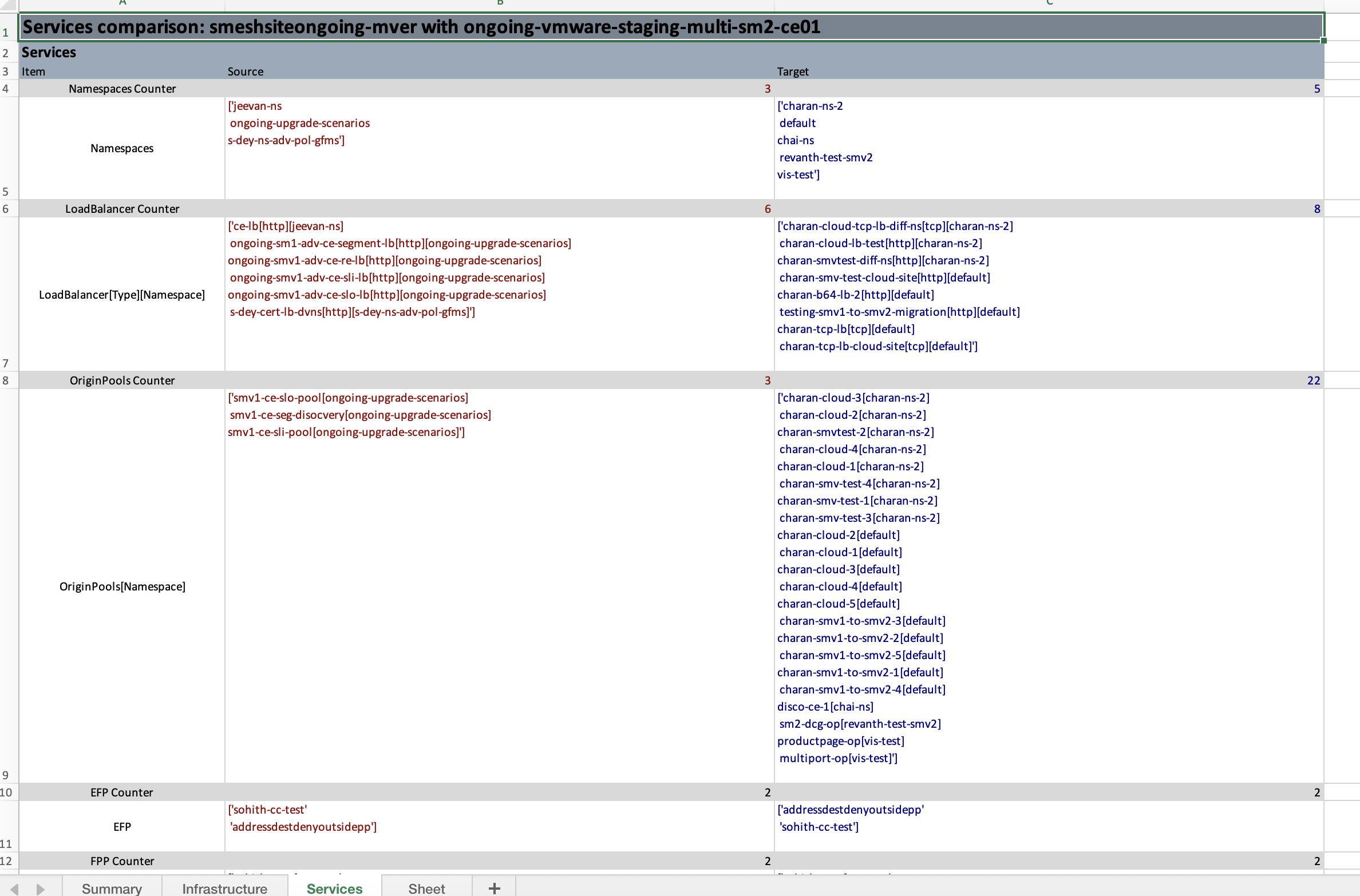
Figure: Details of the Services
Step 2.2: Audit Legacy and Secure Mesh Site v2
Secure Mesh Site v2 Inventory
Run the following docker command to generate the XLSX file for Secure Mesh Site v2 which can be used for auditing purpose.
docker run -it -v "$(pwd)":/data -e f5xc_api_url=$f5xc_api_url -e f5xc_api_token=$f5xc_api_token site-query -f /data/ongoing-vmware-staging-multi-sm2-ce01.json -q -s ongoing-vmware-staging-multi-sm2-ce01 --log-stdout --build-inventory --inventory-file-xlsx /data/ongoing-vmware-staging-multi-sm2-ce01.xlsx --log-stdout
Inventory XLSX file of Secure Mesh Site v2 is stored in "/data/ongoing-vmware-staging-multi-sm2-ce01.xlsx".
The generated XLSX file includes the following sections (see below images):
Summary of Infrastructure and Services:
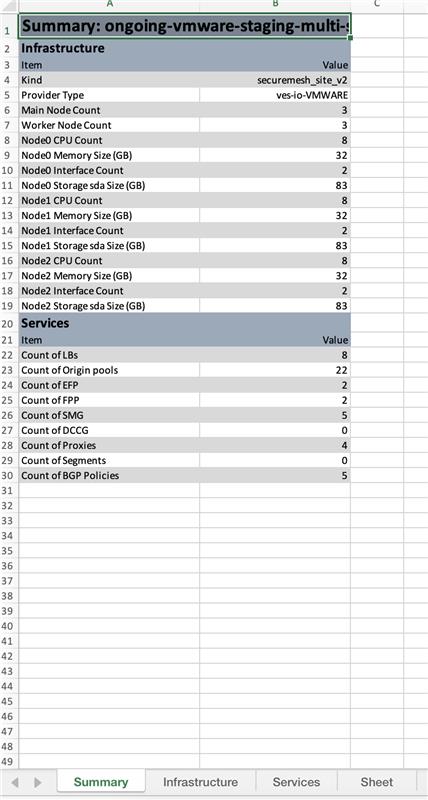
Figure: Summary of Infrastructure and Services
Infrastructure Details:
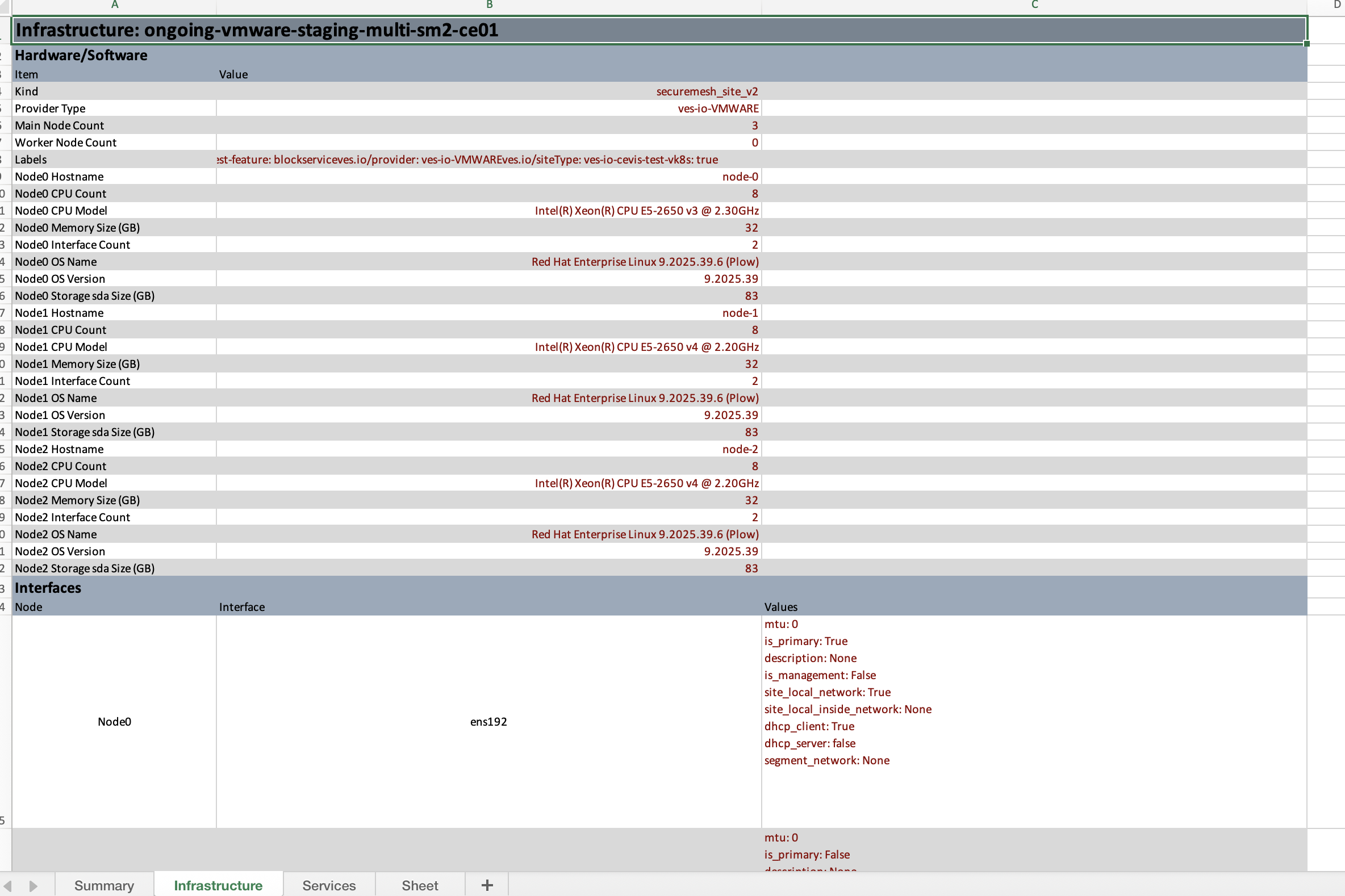
Figure: Details of the Infrastructure
Service Details:
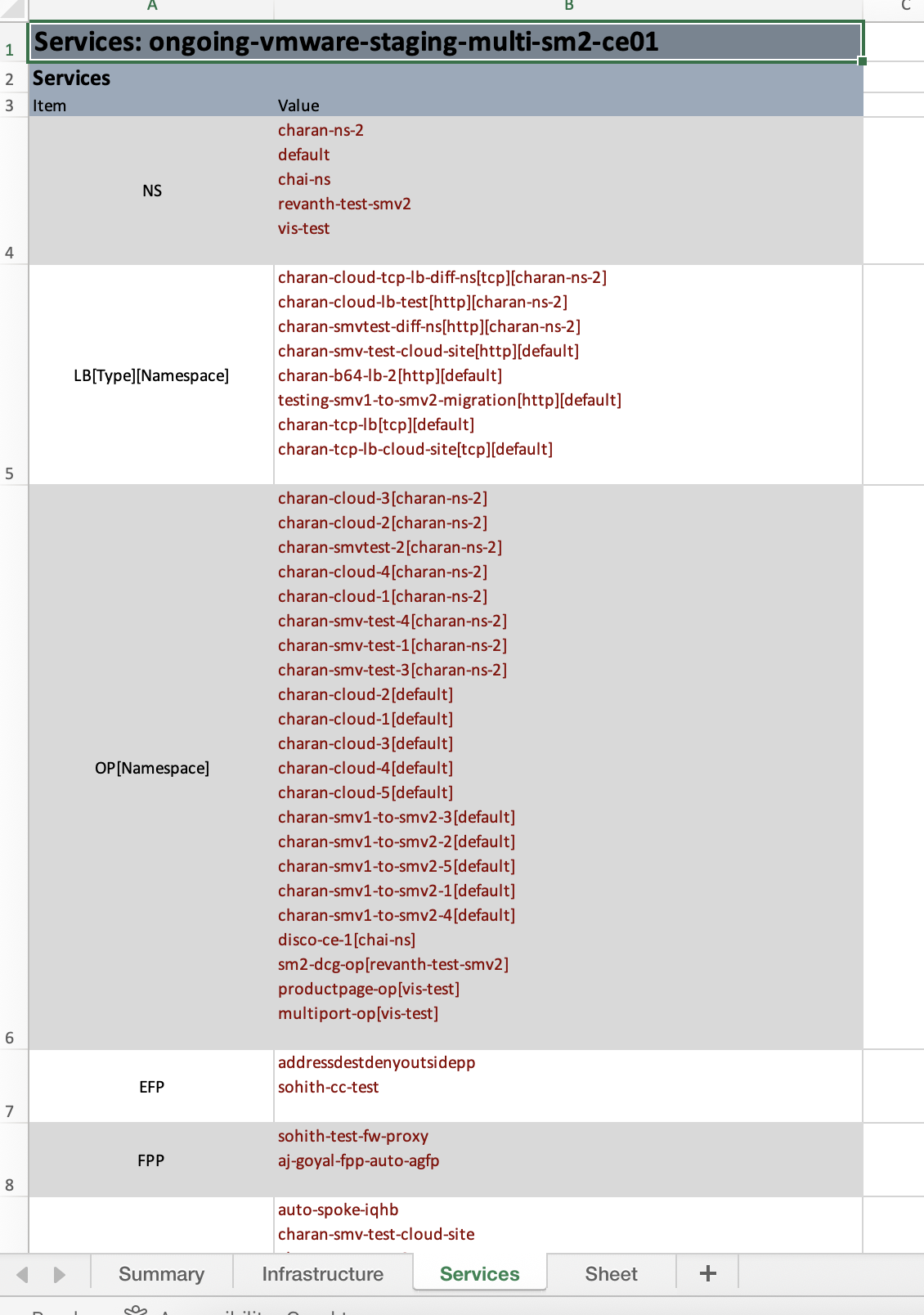
Figure: Details of the Services
Note: The docker script typically takes a few minutes to execute.
- The optional
-wparameter specifies the number of threads (default: 10). Increase this value to improve execution time.- For help on the options, refer to Readme of the Utility repo or, run the following command:
docker run -it --rm -v "$(pwd)":/data -e f5xc_api_url=$f5xc_api_url -e f5xc_api_token=$f5xc_api_token site-query -h
- For additional details and command usage, refer to the GitHub repository README: https://github.com/f5devcentral/f5xc-site-query/.
Supported Object Types for Comparison
- Virtual Sites (vsite)
- Enhanced Firewall Policies (efp)
- Forward Proxy Policies (fpp)
- DC Cluster Groups (dc_cluster_group)
- Load Balancers (TCP/HTTP)
- Origin Pools (origin_pools)
- BGP Configurations (bgp)
- Service Mesh Groups (smg)
- Network Segments (segments)
FAQs
Why should I build a new site and migrate services to the new site?
A new and simplified workflow for Secure Mesh Sites has been introduced and is now Generally Available (GA). This allows for simplified experience to deploy Customer Edges (CEs) anywhere. F5 recommends that you use the new workflow for all Customer Edge deployments and to migrate existing Customer Edge sites to the new Secure Mesh Site v2.
Will this utility migrate from the old site to the new site?
The migration helper utility does not migrate your services from old site to new site, but rather aids you in planning for migration by helping create a snapshot of all services prior to migration, run validation checks against the new site to verify site infra compatibility and lastly allows you to keep track of services that are migrated over to the site to ensure old site is decommissioned once everything is moved over.
What are the minimum requirements to take advantage of the utility?
The utility needs an API token of your tenant in F5 Distributed Cloud to query necessary information and an environment to run the utility as a python script.
What are the Known Issue regarding Vsites?
Vsites with identical names in separate namespaces will result in only the last instance appearing in tabular outputs. Refer to the Caveat section in SaaS Changelogs for more details.
Concepts
On this page:
- Objective
- Introduction
- Docker-Based Migration Helper Utility
- Utility Setup
- Clone Utility from the Repo
- Installation
- Credentials - Create an API Token for Your Tenant
- Define Environment Variables
- Migration Steps
- Step 1: Pre-Migration - Get Legacy Site Inventory
- Export Inventory to XLSX
- Step 2: Post-Migration - Compare and Audit Sites After Migration
- Generate Comparison Table
- Generate the Diff XLSX File
- Secure Mesh Site v2 Inventory
- Supported Object Types for Comparison
- FAQs
- Concepts